
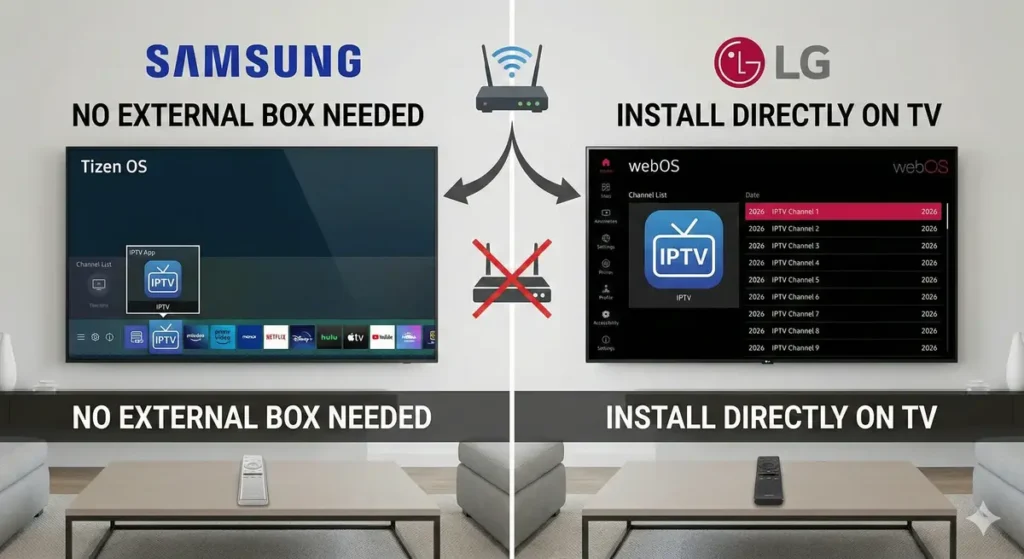
In 2026, the minimalist home entertainment setup is king. Gone are the days of cluttered TV stands filled with Android boxes, tangled HDMI cables, and multiple remote controls. If you own a modern Samsung or LG television, you are sitting on a powerful piece of technology capable of handling your streaming needs directly.
Many users still believe they need external hardware to access their favorite live channels. This guide will debunk that myth and show you exactly how to install IPTV on Samsung & LG Smart TVs without a box. By leveraging the built-in operating systems of these TVs, you can achieve a seamless, single-remote streaming experience.
Why Go “Box-Free” in 2026?
Before diving into the setup, it is important to understand why streaming live TV directly on Smart TV interfaces is the superior choice today.
- Simplicity: You use one remote—the one that came with your TV.
- Aesthetics: A clean setup with no extra wires or plastic boxes cluttering your living space.
- Performance: Modern TV processors (in 2026 models) are highly capable, often loading apps faster than budget external streaming sticks.
- Cost-Effective: You already own the TV; there is no need to spend extra money on hardware just to run an app.
The Challenge: Tizen (Samsung) and webOS (LG)
The reason some people find this difficult is that Samsung and LG do not use the Android operating system. They use proprietary systems: Samsung uses Tizen OS, and LG uses webOS.
This means you cannot simply open the Google Play Store and download any app you want. You must use specific player apps designed for these ecosystems that can handle M3U playlist setup on a Smart TV.
Note: You must already have an active subscription from an IPTV provider. This guide only helps you install the “player” app to watch that content.
How to Install IPTV on Samsung Smart TVs (Tizen OS)
Samsung’s Tizen OS is robust and user-friendly. Getting IPTV on Samsung & LG Smart TVs without a box requires accessing the Samsung Smart Hub.
Step 1: Get Connected
Ensure your Samsung TV is connected to a stable internet connection (ethernet is always preferred over Wi-Fi for live streaming).
Step 2: Access the Smart Hub
Press the ‘Home’ or ‘Smart Hub’ button on your Samsung remote. Navigate to the ‘Apps’ icon and select it.
Step 3: Search for a Player App
In the search bar, type “IPTV”. In 2026, several reliable apps support Tizen. Look for popular, long-standing options such as:
- Smart IPTV (SIPTV): A classic, paid app known for stability.
- Net IPTV: A lightweight alternative often used if SIPTV isn’t available.
- Nanomid Player: Known for handling large playlists well.
- IBO Player: A modern interface that has gained popularity.
Step 4: Install and Launch
Select your chosen Smart IPTV app for Samsung and click “Install.” Once downloaded, launch the app.
Step 5: Note Your MAC Address
When the app opens, it will usually display a “MAC Address” on the screen. Write this down; you will need it to activate your service in the next section.
How to Install IPTV on LG Smart TVs (webOS)
LG’s webOS is famous for its “magic remote” pointer interface, making navigation easy. The webOS IPTV installation process is very similar to Samsung’s.
Step 1: Open the Content Store
Press the ‘Home’ button on your LG remote. Navigate the bottom menu until you find the “LG Content Store” (it usually looks like a shopping bag icon).
Step 2: Search for Apps
Select the magnifying glass “Search” icon in the Content Store. Type “IPTV”.
Step 3: Choose Your Player
Similar to Samsung, you need to select a reliable player app. The available apps often overlap with Tizen. Look for:
- Smart IPTV (SIPTV)
- DuplexPlay (Check availability in your region)
- NET IPTV
- SS IPTV (A free, albeit slightly older, alternative)
Step 4: Install and Run
Download the chosen Smart IPTV app for LG and launch it from your home menu.
Step 5: Get the MAC Address
Just like on Samsung, the app will display a unique MAC address on its startup screen. Keep this handy.
The Final Step: Activating Your Playlist (M3U)
This is the most crucial step. The apps you just installed are empty shells. You need to feed them your content.
- Go to a Computer or Phone: You cannot usually enter your playlist details directly on the TV with the remote; it’s too cumbersome.
- Visit the App’s Website: If you downloaded “Smart IPTV,” go to their official website. If you used “Net IPTV,” go to theirs.
- Enter Your MAC Address: On the website’s “Activation” or “My List” page, enter the MAC address displayed on your TV screen.
- Enter Your M3U URL: Your IPTV provider gave you a long link called an M3U URL. Paste this link into the designated field on the website.
- Send/Submit: Click the submit button on the website.
- Restart the TV App: Go back to your Samsung or LG TV. Close the IPTV app completely and reopen it. It should now load your channel list.
Conclusion
Setting up IPTV on Samsung & LG Smart TVs without a box in 2026 is a straightforward process that maximizes the potential of the hardware you already own. By utilizing the dedicated app stores on Tizen and webOS, you can enjoy a clutter-free, high-performance streaming experience. Say goodbye to extra HDMI devices and enjoy seamless TV viewing.