
Are you tired of paying over $100 a month to Bell, Rogers, or Telus for cable packages filled with channels you never watch? You aren’t alone. Thousands of Canadians are switching to IPTV subscriptions every month to save money and unlock thousands of live channels, sports, and movies.
If you have an Amazon Firestick, you already have the best device for streaming. But setting it up can be tricky if you don’t know the steps.
In this guide, we will show you exactly how to install IPTV in Canada on your Firestick. Whether you are looking for the best IPTV providers or just want to watch the game without blackouts, this tutorial will get you up and running in under 5 minutes.
Why Choose IPTV Over Cable in Canada?
Before we start the installation, it’s important to understand why IPTV Canada searches are skyrocketing.
- Cost: An average IPTV subscription costs a fraction of a cable bill.
- Content: You get access to channels from the US, UK, Canada, and international sports networks all in one place.
- Convenience: No rental boxes or contracts. Just use your Firestick and WiFi.
Note: For the best experience, ensure you have a stable high-speed internet connection (at least 20 Mbps is recommended for HD/4K streaming).
Step 1: Prepare Your Firestick for IPTV
Amazon Firesticks come with security settings that prevent you from installing third-party applications by default. To install an IPTV app, we first need to “Jailbreak” the Firestick (don’t worry, this is safe and legal; it just means allowing unknown apps).
- From your Firestick Home Screen, go to Settings (the gear icon).
- Scroll down and select My Fire TV.
- Important: If you do not see “Developer Options,” click on About, then highlight Fire TV Stick and click the center button on your remote 7 times fast. You will see a message saying “You are now a developer.”
- Press back, and now select Developer Options.
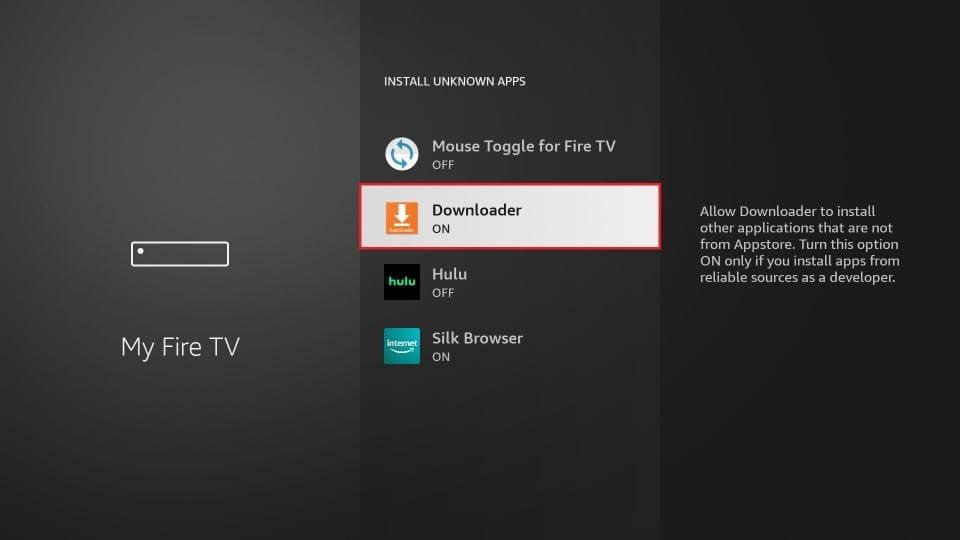
- Turn ON Apps from Unknown Sources.
Step 2: Get the “Downloader” App
Since IPTV providers usually aren’t in the Amazon App Store directly, we need a helper app called “Downloader” to fetch the installation files.
- Press the Home button on your remote.
- Go to Find Play Store and search for “Downloader”.
- Select the orange app icon named Downloader.
- Click Download or Get.
- Open the app once it installs and click Allow when asked for permission.
Step 3: Install the IPTV App
Now comes the fun part. You need to download the application that will play your streams. Most IPTV providers use IPTV Smarters Pro or their own custom app.
- Open the Downloader app.
- Click on the URL bar where it says
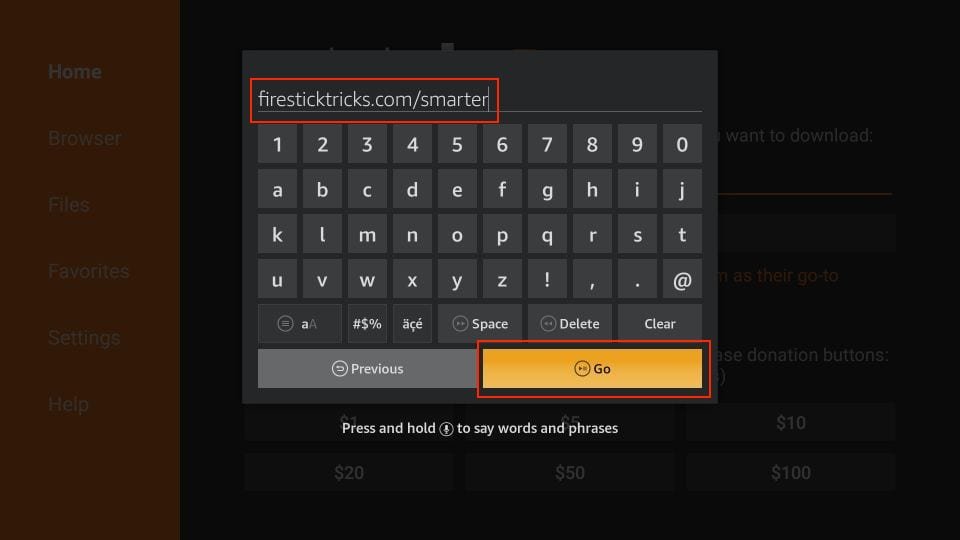
http://. - Enter this Downloader Code: https://Firesticktricks.com/smarter
- Click Go. The file will start downloading.
- Once the download finishes, a window will pop up. Click Install.
- Once installed, click Done (do not click Open yet).
- Click Delete to remove the installation file and save space on your Firestick.
Step 4: Login to Your IPTV Subscription
Now that the app is installed, you are ready to connect to the server.
- Go to your Apps & Channels list and find the app you just installed.
- Open the app.
- You will be asked for your login details. This usually includes:
- Username
- Password
- URL (Server Address)
- Enter the details sent to your email when you purchased your IPTV subscription.
- Click Login or Add User.
Don’t have a subscription yet? Check out our IPTV Canada Pricing plan to get instant access to the best premium channels.
Important Tip: Do You Need a VPN for IPTV in Canada?
When using IPTV providers in Canada, you might notice buffering during big events like NHL games or UFC fights. This is often because Canadian ISPs (like Bell or Rogers) “throttle” or slow down streaming traffic that they don’t recognize.
To stop buffering and protect your privacy, we highly recommend using a VPN. A VPN hides your streaming activity from your ISP, ensuring you get the full speed of your internet connection.
Troubleshooting Common Issues
1. The App Won’t Install Make sure you have enough storage space on your Firestick. Uninstall old games or apps you don’t use.
2. Channels are Buffering
- Restart your router/modem.
- Connect your Firestick to the 5GHz WiFi band (not 2.4GHz).
- If you are in Canada, try using a VPN to bypass ISP throttling.
3. “Authorization Failed” Error Double-check your username and password. These are case-sensitive. If it still fails, contact our Support team for 24/7 assistance.
Ready to Watch?
Setting up IPTV on Firestick is the smartest way to watch TV in 2026. You get the quality of cable with the flexibility of streaming, all for a much lower price.
If you are looking for the best IPTV Canada service with 4K quality, anti-freeze technology, and over 10,000 channels, try Vizo IPTV today.
2 Responses